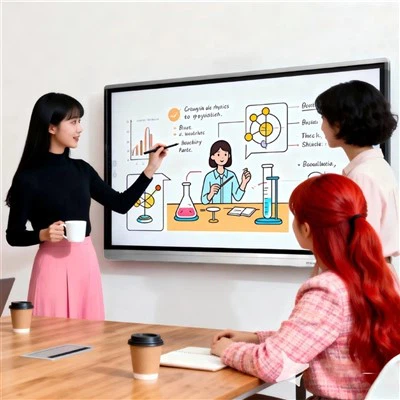
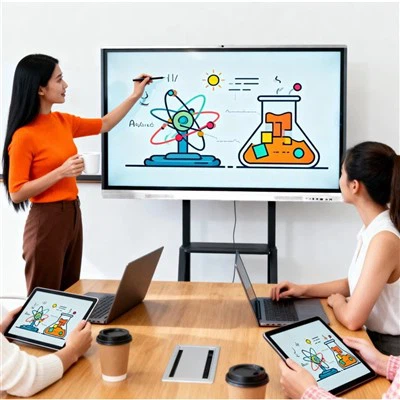
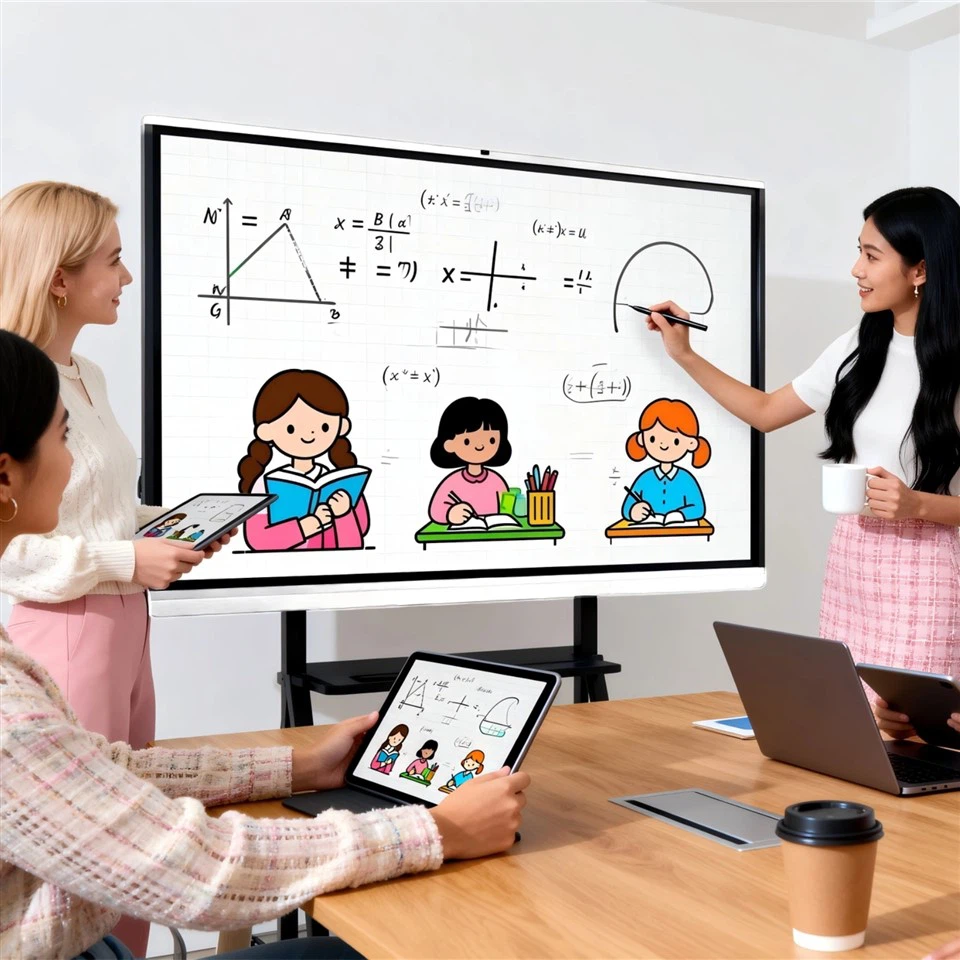
As K12 schools and universities continue accelerating digital learning, "bringing a large screen into the classroom" is no longer new. What has changed is the expectation: classrooms now require more than "displaying slides." Teachers need a smooth teaching flow-fast setup, natural writing, quick content switching. Students need more interaction and participation. Administrators and IT teams need consistent experiences across rooms, plus manageable operations that don't turn into a long-term burden.

That's why mobile smart displays (interactive screens on wheels, mobile teaching panels, mobile interactive displays) are becoming increasingly common in classrooms. Their value is not simply mobility-it's whether they can reliably support the full learning workflow: present → explain → interact → retain → reuse.
1) What a Classroom Actually Uses It for (Daily Tasks)
In real teaching environments, mobile smart displays typically support these high-frequency tasks: presenting lesson content and multimedia; live writing and annotation; switching among documents, websites, subject software, and videos; inviting students to solve problems at the screen or collaborate in groups; saving key pages, annotations, and screenshots for after-class review; and, in open classes or teaching research settings, working with recording systems to create reusable learning assets.
These tasks may sound standard, but whether they feel smooth depends on performance across touch interaction, visibility, connectivity, and ongoing management.


2) Core Capabilities That Matter Most: Keeping Class Rhythm Uninterrupted
The classroom environment is unforgiving. The two biggest frustrations are slow class start and mid-class interruptions. So the "right features" are the ones that reduce friction.
1) Natural writing and annotation
Teachers should be able to write, erase, and highlight as naturally as they would with a traditional board. Low latency and strong palm rejection are critical to maintain teaching pace.
2) Fast wireless sharing and quick source switching
Classrooms commonly involve multiple sources-teacher laptops, student devices, document cameras, teaching PCs, etc. Stable casting, fast switching, and (when needed) multi-device display make interactive teaching much easier.
3) Content retention and sharing
Whiteboard notes, annotations, screenshots, and key pages should be easy to save and export-supporting after-class review and lesson reuse.
4) Clear audio coverage (depending on room size)
For larger classrooms or noisy environments, good voice pickup and appropriate audio support often improve outcomes more than "a bigger screen."
5) Centralized control and permissions
In multi-classroom deployments, device policies, app permissions, scheduling, brightness/volume limits, and role-based access (teacher vs. guest) have a direct impact on long-term maintenance effort.
3) Common Pain Points (Where Projects Typically "Go Wrong")
In classroom deployments, issues usually cluster around five areas:
Teaching flow is slowed by connectivity: casting is unstable, adapters are needed, switching sources is slow-class time gets wasted.
Writing feels unnatural: visible lag, edge drift, or frequent false touches quickly reduce teacher usage.
Content isn't readable in bright rooms: glare and reflections near windows; back-row students struggle to read.
Inconsistent audio: students at the back can't hear clearly; recording audio sounds muddy; noise makes speech unusable.
Experience differs across classrooms: different rooms feel different, raising training effort and turning IT into "firefighting."
These issues are rarely caused by "missing features." They're typically caused by insufficient stability design for real classroom workflows-and the lack of clear acceptance criteria.
4) Pros and Cons in Classrooms: Where Mobile Smart Displays Excel (and Where They Have Limits)
Advantages
- Greater flexibility: units can be moved between classrooms or functional rooms-useful for rotating schedules, temporary open classes, and cross-building activities.
- Stronger interaction: compared with projectors or standard TVs, touch + whiteboard collaboration enables real participation.
- Easier standardization: when paired with consistent policies, it's easier to keep classroom experiences uniform at scale.
- Better content retention: annotations and lesson flow can be saved, shared, and reused more naturally.
Potential drawbacks / boundaries
- Higher demands on mobility safety: stand stability, reliable brakes, and safe cable routing are non-negotiable.
- Greater sensitivity to network environment: stable wireless casting often needs reasonable network planning and access policies.
- Larger rooms may require audio support: built-in speakers are often not sufficient for 40+ students.
- Without centralized policies, maintenance effort rises: the more devices you deploy, the more this matters.
5) Example Classroom Solutions: Three Reference Configurations (Budget-Friendly to Advanced)
Below are three common, highly deployable configuration patterns. Schools can choose based on class size, interaction intensity, recording needs, and centralized management requirements.
Solution A: Basic Interactive Classroom (Smooth teaching + retention)
Best for: standard K12 classrooms or training rooms, moderate interaction needs, no recording or occasional recording only.
Package: mobile smart display (touch + whiteboard) + stable casting/multi-source input + easy save/export/share.
Outcome: faster start, natural boardwork, clear retention; teachers use it more consistently and student engagement improves.
Solution B: Enhanced Interactive Classroom (multi-user collaboration + fast switching + audio coverage)
Best for: high-interaction classes, open classes, larger classrooms.
Package: mobile smart display + multi-device sharing/host control (for student presentations) + voice pickup/amplification (for back-row clarity) + standardized classroom templates and permissions.
Outcome: interaction becomes controlled and repeatable; group presentations and student participation run smoothly; audio stays usable even in noisy moments.
Solution C: Recording-Enabled Smart Classroom (stable capture chain + reusable course assets)
Best for: flagship lessons, teaching research, hybrid learning, course library creation.
Package: mobile smart display (content + writing) + teacher panorama/close-up cameras + optional student capture + ceiling/array microphones + recording host and management platform.
Outcome: teachers operate less; recording quality is consistent; content becomes a long-term institutional asset.
6) Acceptance Checklist: What to Test When a Sample Unit Enters the Classroom
To avoid "finding out after purchase," classroom acceptance should focus on measurable, observable items:
Class start efficiency: time and steps required to begin teaching (open content + casting)
Writing performance: visible latency, clean erasing, no dropouts or drift during multi-user writing
Visibility: glare/reflection near windows, readability from the back row, color shift at wide angles
Connectivity reliability: casting success rate across Windows/macOS/iOS/Android and stability during switching
Audio coverage (if deployed): clarity in the back row and usability under noise
Content retention: one-click save/export, simple sharing path for teachers
Mobility & safety: rolling smoothness, brake reliability, lift stability, safe cable routing
Operations & control: grouping, permissions, scheduled power, remote settings, and basic troubleshooting capability
7) Deployment and Operations: Making "Scalable Replication" Real
The long-term success of classroom projects depends on operating consistency. If a school plans to replicate across many rooms, it helps to standardize three things early:
(1) network and casting policies (who can cast, where, and whether verification codes or access controls are required),
(2) classroom apps and permissions (teacher apps, guest restrictions), and
(3) device grouping and policy control (group by grade/building/room type, scheduled power, brightness/volume limits, logging and alerts).
This ensures teachers experience consistent workflows, IT teams spend less time on exceptions, and future expansion becomes faster.
Conclusion: The Classroom Goal Isn't "Top Specs"-It's a Smooth, Repeatable Learning Workflow
The real value of a mobile smart display in classrooms comes down to outcomes: smoother teaching pace, more natural interaction, retained and reusable lesson content, and controllable long-term operations. Planning around Needs → Pain Points → Configuration → Value-and validating with clear acceptance criteria-helps classroom projects scale from pilot rooms to repeatable deployments that continue to perform over time.